Organizing a clean Minecraft HUD layout using Lunar Client can create a huge difference in how you play. Knowing how to customize your Lunar Client HUD, choosing the right mods, and picking the perfect colors can improve your gameplay—but, how? In this article, we’ll cover the best Lunar Client HUD setups and some tips to help you get started.
Why is a clean Lunar Client HUD Setup Important?
Utilizing a clean Lunar Client HUD for Minecraft gameplay can improve your gameplay experience. While it isn’t essential, it can be important to those wanting a clean look when they’re playing Minecraft. Players may want to use Lunar Client mods that provide them with many advantages that can help them improve their gameplay. Some of these mods can range from Lunar Client’s Coordinates mod to something as simple as the FPS mod. A great example of this can be a Minecraft content creator using a minimalistic HUD setup while using Lunar Client, as fewer distractions on the screen would equal better viewership while watching the creator’s content.
How Minecraft Players have utilized a clean HUD Setup
Many players utilize a clean Lunar Client HUD setup to minimize distractions, only keeping relevant mods displayed. Players may choose colors that best match their aesthetic while using a Minecraft resource pack to match their theme. Additional Lunar Client mods that players have used to give their Minecraft a “slick look” would be the Color Saturation Mod, enhancing the vibrancy of their game without using shaders, and Motion Blur, to give players a smoother gameplay experience.
Lunar Client Mods to use for your HUD Setup
Now, you may be wondering what type of Lunar Client mods you should use when customizing your HUD layout. While the usage of many Lunar Client mods is based on personal preference, here are some of our recommendations you could start using today. If you’re playing in fullscreen mode and need to view the time while playing Minecraft, using Lunar Client’s Clock Mod can help you do just that. You can also consistently check how much FPS you’re receiving while playing Minecraft with our FPS Mod. Finally, using the Coordinates Mod can help you view where you’re located without pressing your F3 keybind.
Helpful Lunar Client HUD Setup Tips
Now, you’re probably wondering what type of tips we have to offer when creating your own HUD Setup for Minecraft on Lunar Client. Here are some easy-to-follow tips that we believe should help you when creating that clean look.
Keeping it Minimalistic
You don't want to have all of your HUDs cramped together, as it can be uneasy for the human eye to process. Keeping the HUD layout simple by creating spacing around it can help you process the information more easily without straining your eyes. This is important for determining which mods are your favorites.
Spacing
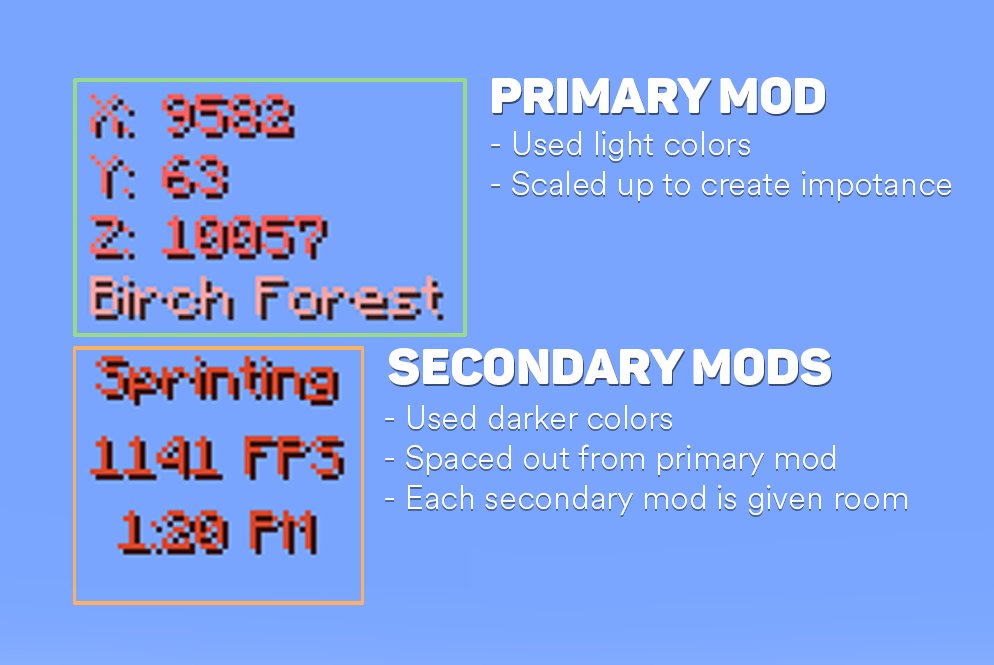
You don’t want to have all of your HUDs cramped together, as it can be uneasy for the human eye to process. Keeping the HUD layout simple by creating spacing for it can ensure that you’re processing the information provided to you easily without causing strain on your eyes. This is important for determining what your primary and secondary mods are.
Color Usage
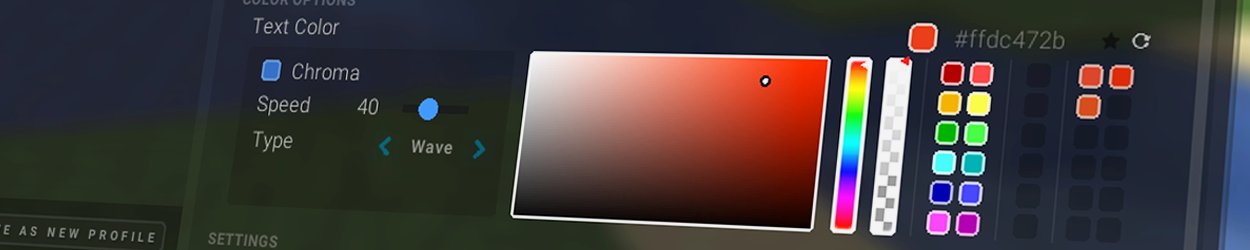
It’s important to use colors that can help you analyze the different mods you have displayed while staying consistent with the overall theme you have. An example of this is using colors that are slightly darker than your primary mods for your secondary mods. Your favorite mod could be Lunar Client’s Coordinates Mod, while your secondary mods could be the ToggleSprint, FPS, and Clock Mods. By using a darker shade of your selected color on secondary mods, you’ll be able to see a noticeable difference.
If you have any questions or are experiencing issues with your client, create a ticket on our Support Website or join the Lunar Client Discord server! If you are unsure of how to create a ticket, please view the Lunar Client Support Guide.