Looking for a way to make your Minecraft gameplay smoother? Lunar Client’s Motion Blur mod is the perfect way to make your game feel buttery smooth, whether you’re PvPing or simply playing survival. This article will take a look at the basics of Lunar Client’s Motion and how you can maximize its potential while playing Minecraft.
What is Motion Blur?
Motion Blur is a Minecraft mod on Lunar Client that adds a blur to movement on your screen, making your gameplay smoother. While the Motion Blur effect can also be achieved using outside mods, resource packs, and shaders, Lunar Client’s Motion Blur provides a more comprehensive experience. Not only does it allow advanced customization not possible through other means, Lunar Client’s Motion Blur is also optimized to give you the best performance possible, especially since Motion Blur can often be a performance-intensive modification to Minecraft.
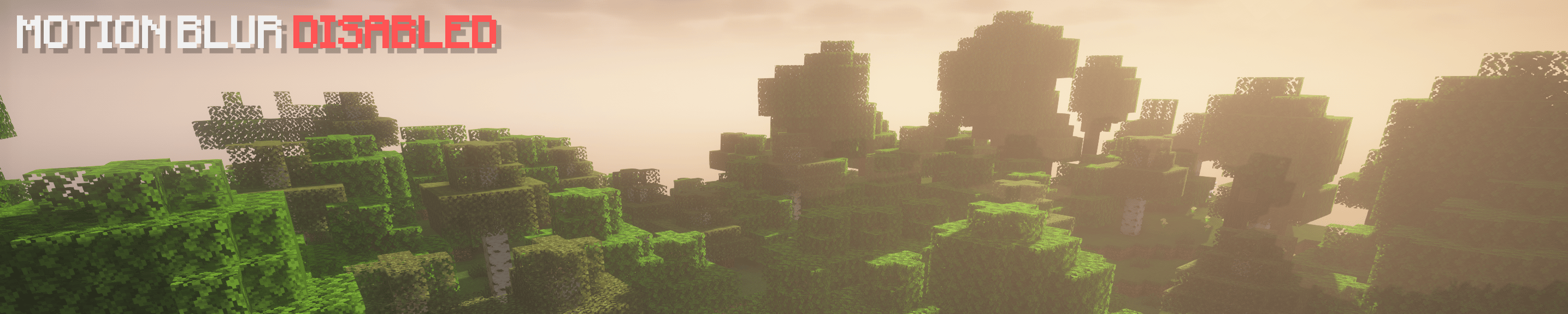
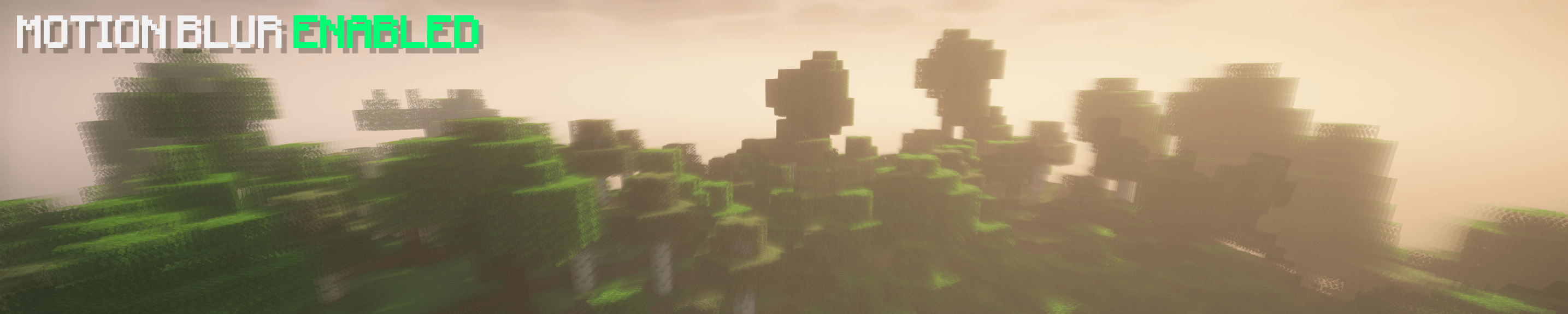
Using Motion Blur on Lunar Client
Begin by launching Lunar Client—Motion Blur is available across all Minecraft versions and add-ons on Lunar Client. Ensure that you have downloaded and installed Lunar Client! If you do not have Lunar Client, you can download it here. Once you’ve launched Lunar Client, join any Minecraft server or world and navigate to Right Shift > Mods > Motion Blur.

Once inside the mod, you’ll be able to customize a couple of different settings. Through the Type option, you’ll be able to switch between three different types, V1, V2, and V3. Certain users may experience issues with certain types of Motion Blur—if this is the case, switch the Type inside the Motion Blur mod’s settings. Aside from type, you can also customize the value of the Motion Blur, which modifies the intensity of the blur. We recommend lower values over higher values as they look cleaner, are easier to play with, and are better for performance.
One important caveat is that if you are using Optifine, Motion Blur will not work if you have Fast Render enabled. You can toggle Fast Render by navigating to Esc > Options > Video Settings > Performance > Fast Render. Furthermore, Motion Blur may also conflict with certain shaders and resource packs, so if you are experiencing any issues, we recommend disabling these.

Utilizing Motion Blur on Low-End Computers
Motion Blur can often be tough to use on low-end computers due to its intensive resource use. As mentioned earlier, we recommend using a lower value of Motion Blur as it will be less performance-intensive. We also suggest trying the different types of motion blur (V1, V2, V3) to determine which one works best on your computer. Finally, you should also take a look at our FPS Guide to ensure that you are using the best possible settings for Minecraft and Lunar Client.
Motion Blur and Super Secret Settings
Super Secret Settings was a button in Minecraft versions 1.7 and 1.8 that, when pressed, would enable a random post-processing visual effect. These effects ranged from changing the game’s saturation, transposing colors, and even inverting controls. Interestingly, one of these effects included motion blur. Despite its native availability on Minecraft 1.7 and 1.8, we recommend using Lunar Client’s Motion Blur because of its universal availability across all Minecraft versions as well as its customization options and performance optimizations.

How Motion Blur is Used Outside Minecraft
Motion Blur is commonly used by YouTubers when editing their videos to make their gameplay appear smoother and more coherent. One of the most common types of Motion Blur is called RSMB, or RealSmart Motion Blur. Because editing processes differ both by the person and by editing software, we cannot provide a concrete tutorial on how to apply this effect to your videos. Rather, we suggest looking up a tutorial on YouTube based on the editing software that you use.
If you have any questions or are experiencing issues with your client, create a ticket on our Support Website or join the Lunar Client Discord server! If you are unsure of how to create a ticket, please view the Lunar Client Support Guide.